On-campus computer labs
Computer labs are available for scheduled classes and student use. Main locations include:
-
A120 and A128
-
Harris Learning Library
Virtual computer labs
Virtual Computer Labs provide remote access to university software and lab environments from your own device.
-
From mynipissing and select Services tab > Virtual Computer Labs
-
Sign in using your full Nipissing University email address and password
-
Select the lab you need; most users will choose General Lab
Direct link: labs.nipissingu.ca
Always save files to OneDrive - Nipissing University. Files saved only to the virtual desktop may be lost when you sign out.
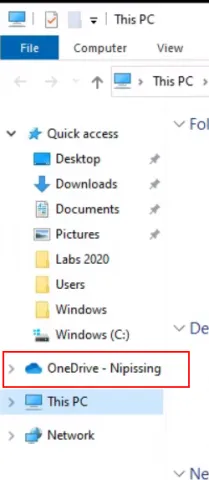
Open Windows File Explorer and select OneDrive - Nipissing University in the left navigation panel.
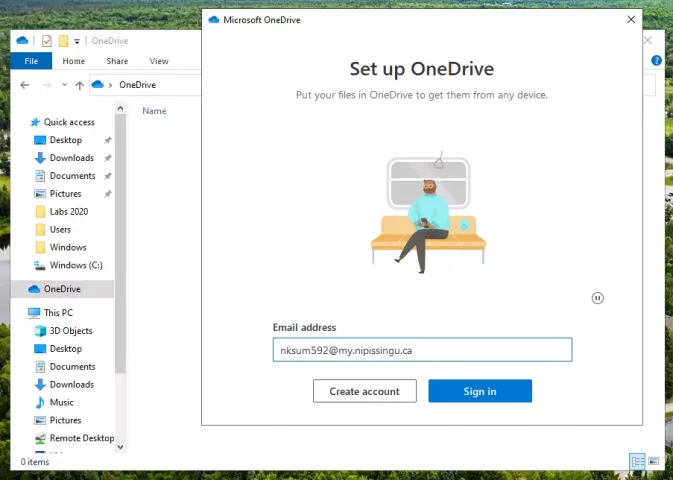
If OneDrive asks you to sign in, use your Nipissing University Microsoft 365 account.
Look for the solid blue OneDrive cloud icon near the clock on the Windows taskbar. When you hover over it, the status should show that OneDrive is up to date.

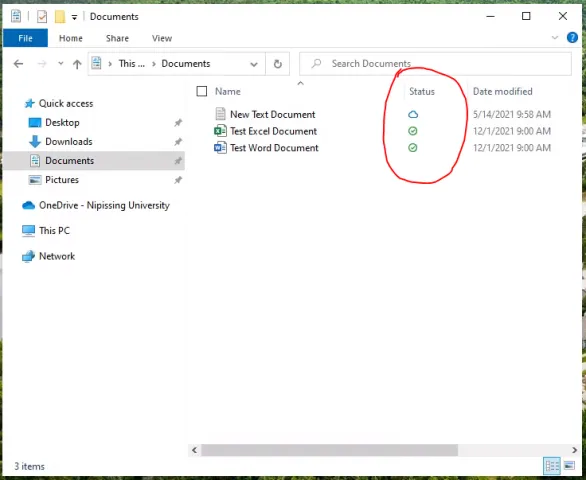
You can also confirm OneDrive is working by checking for status icons beside files in the OneDrive folder.